Best AI Background Removal Tools 2026 (Workflow-First)
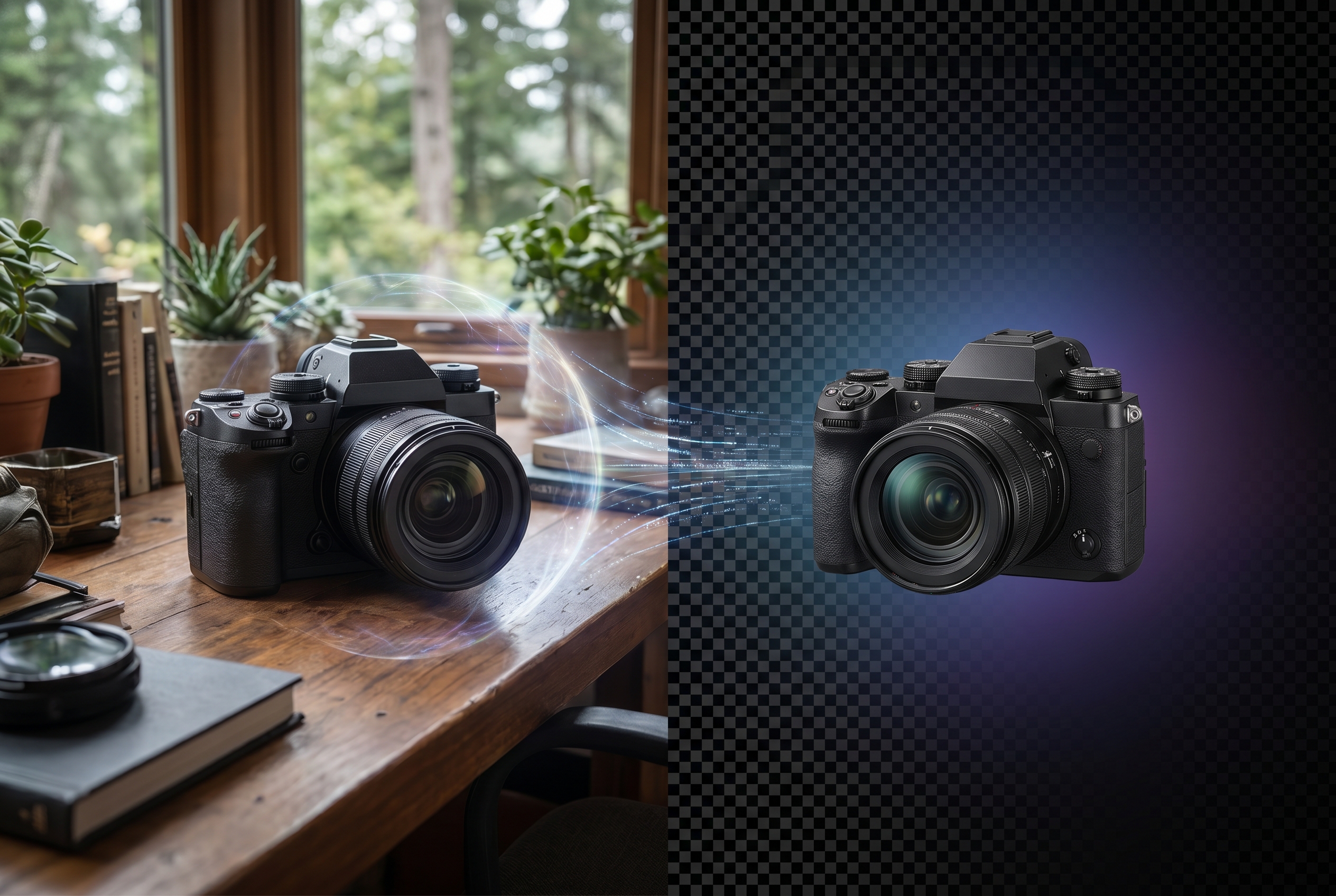
Best AI Background Removal Tools 2026 (Workflow-First)
Most "best background remover" lists rank tools by how clean a single cutout looks. That's table stakes — every decent tool handles simple portraits now.
The real question is workflow fit:
- Are you removing backgrounds from one product shot or ten thousand SKUs?
- Do you need an API feeding your e-commerce pipeline, or a drag-and-drop editor for social posts?
- Does your workflow involve video, not just stills?
- How much manual cleanup can your team absorb?
This guide compares background removal tools across five things that actually affect your output:
- Best for who
- Edge quality (hair, transparency, complex objects)
- Batch and speed
- API and integrations
- Pricing
If you're also choosing broader editing tools, check:
Quick picks (if you just need a starting point)
- Best overall for photos: remove.bg
- Best for e-commerce product shots: Photoroom
- Best for precision manual control: Clipping Magic
- Best free option built into a design tool: Canva Background Remover
- Best for Adobe workflow integration: Adobe Express
- Best free browser-based option: Pixlr
- Best for video background removal: Unscreen
Quick decision guide: Which tool fits your use case?
Before diving into individual tool reviews, here's how to match your workflow to the right tool in seconds:
| Your situation | Best tool | Why |
|---|---|---|
| High-volume e-commerce API pipeline | remove.bg | Mature REST API, consistent quality at scale, Shopify/WooCommerce plugins |
| Product photos with scene staging | Photoroom | Background removal + instant AI studio backgrounds in one workflow |
| Complex edges that auto-tools miss | Clipping Magic | Manual markup tools that close the gap Photoshop can't be bothered to touch |
| Already designing in Canva | Canva Background Remover | Native to your workflow, no context switching |
| Adobe Creative Cloud user | Adobe Express | Flows directly into Photoshop, Illustrator, InDesign |
| Free, no-account, quick cutout | Pixlr | Browser-based, no signup, no watermark on free tier |
| Video clips or GIFs | Unscreen | Frame-by-frame video processing — no photo tool competes here |
| Budget solo creator | Canva Pro or Pixlr | Lowest cost entry points with usable quality |
How we evaluated these tools
We used a workflow-first scoring lens:
- Edge quality: Hair detail, semi-transparency, complex edges, and shadow handling
- Batch and speed: Single-image turnaround and bulk processing capability
- API and integrations: Developer access, e-commerce plugins, automation support
- Video support: Whether the tool handles video background removal at all
- Pricing clarity: Whether cost scales predictably with volume
No tool wins everything. A solo creator editing Instagram stories has different needs than an e-commerce team processing thousands of product images daily.
Note on testing methodology: We evaluated tools using a mix of standard product photography, complex subjects (hair, fur, glass), and high-volume batch scenarios. Edge quality scores reflect out-of-the-box results before manual refinement — which is what most users will experience.
1) remove.bg
Best for who
Anyone who needs fast, reliable photo background removal — from freelance designers to e-commerce teams with API-driven pipelines.
Edge quality
Industry-leading on hair, fur, and semi-transparent edges. Handles complex subjects well out of the box with minimal manual cleanup. Shadow detection and preservation is solid.
Batch and speed
Excellent. Desktop app supports bulk processing. API handles high-volume workflows with consistent quality. Processing is near-instant for standard images.
API and integrations
Mature REST API with broad language support. Integrations with Shopify, WooCommerce, Photoshop, Figma, and more. Well-documented, production-ready.
Pricing
Free tier: limited resolution. Paid plans start around $0.20/image on credit packs, with subscription plans offering better per-image rates at volume. Enterprise pricing available.
Pros
- ✅ Best-in-class edge quality for hair, fur, semi-transparency
- ✅ Production-ready REST API with extensive documentation
- ✅ Consistent quality across varied subject types
- ✅ Shadow detection and preservation
- ✅ Strong ecosystem integrations (Shopify, WooCommerce, Figma, Photoshop)
- ✅ Scales from one-off edits to enterprise volume
Cons
- ❌ Free tier severely downscales output resolution
- ❌ Per-image cost adds up at high volume without subscription
- ❌ No native video support
- ❌ No built-in scene staging or background replacement
Bottom line
Pick remove.bg when you need a reliable, API-ready workhorse that handles edge cases well and scales from one-off edits to bulk pipelines.
2) Photoroom
Best for who
E-commerce sellers, marketplace vendors, and small product teams who need studio-quality product photos from phone shots.
Edge quality
Very strong on product edges. Excels at clean, sharp cutouts for hard-edged objects (shoes, electronics, packaging). Hair and organic edges are good but not quite remove.bg-level.
Batch and speed
Fast single-image processing. Batch mode available on higher plans. Mobile app is genuinely usable for on-the-go product photography.
API and integrations
API available for business plans. Integrations with Shopify and other e-commerce platforms. Instant Backgrounds feature automatically places products on professional scenes.
Pricing
Free tier with watermark. Pro plans start around $10/month. Business/API pricing scales with volume. Good value for small e-commerce operations.
Pros
- ✅ Excellent product-edge cutout quality out of the box
- ✅ Instant Backgrounds: unique AI scene staging in one click
- ✅ Mobile-first design, genuinely usable on-device editing
- ✅ Strong shadow and reflection handling for product photography
- ✅ Free tier accessible for testing before committing
- ✅ Batch mode unlocks at Pro tier
Cons
- ❌ Free tier includes watermark — not usable for published work
- ❌ Hair and organic edges lag behind remove.bg
- ❌ API locked behind Business plan (higher price point)
- ❌ Scene staging is powerful but can produce inconsistent results across runs
Bottom line
Choose Photoroom if your workflow is product-centric and you want background removal bundled with scene staging and instant product photo creation.
3) Clipping Magic
Best for who
Photographers, retouchers, and teams that need precision control over complex cutouts — especially when automated tools miss details.
Edge quality
High quality with extensive manual refinement tools. Smart edge detection plus manual markup for tricky areas. Handles hair well, and gives you fine-grained control over edge smoothing, feathering, and color decontamination.
Batch and speed
Bulk processing available via the Bulk Clips feature and API. Single images take slightly longer if you use the manual refinement tools, but the quality payoff is real.
API and integrations
Full API with background removal, cropping, and color adjustment endpoints. Less ecosystem breadth than remove.bg, but solid for custom pipelines.
Pricing
Credit-based pricing. Plans start around $3.99/month for light use, scaling up for heavier volume. Per-image costs are competitive at higher tiers.
Pros
- ✅ Most powerful manual refinement tools in one place
- ✅ Fine-grained control: edge smoothing, feathering, color decontamination
- ✅ Handles hair and complex edges where automation falls short
- ✅ No-compromise edge quality when time is invested
- ✅ API covers full pipeline needs (crop, color adjust, bg removal)
- ✅ Credit-based model — pay only for what you use
Cons
- ❌ Steeper learning curve for manual markup tools
- ❌ Single-image workflow if you skip the manual step feels slow
- ❌ Less ecosystem breadth than remove.bg (fewer direct integrations)
- ❌ No video support
- ❌ Batch processing requires credit consumption — cost tracking matters at scale
Bottom line
Use Clipping Magic when automated results aren't enough and you need manual precision tools without switching to full Photoshop.
4) Canva Background Remover
Best for who
Marketers, social media managers, and non-designers who already work inside Canva and need quick background removal as part of a broader design workflow.
Edge quality
Good for standard use cases — portraits, simple products, clear subjects. Struggles more with fine hair detail and complex transparency compared to dedicated tools.
Batch and speed
Single-image only (no batch mode). Processing is fast. Best suited for one-at-a-time social/marketing workflows.
API and integrations
No standalone API for background removal. Available only within Canva's ecosystem. Works seamlessly with all other Canva design features.
Pricing
Included with Canva Pro ($13/month) and Canva Teams plans. Not available on the free plan.
Pros
- ✅ Zero context switching — background removal inside your existing design workflow
- ✅ Instant integration with Canva's full suite (templates, filters, animations)
- ✅ One-click simplicity, no learning curve
- ✅ Good enough quality for social media and marketing use cases
- ✅ Included in Pro — if you already pay for Canva, it's effectively free
Cons
- ❌ Not a dedicated tool — quality lags specialist background removers
- ❌ No batch mode — unusable for volume workflows
- ❌ No standalone API — cannot be used outside Canva ecosystem
- ❌ Free tier excluded — requires paid Canva Pro or Teams
- ❌ Struggles with fine hair detail, complex transparency, and glass
Bottom line
Pick Canva BG Remover when background removal is one step in a Canva-native design workflow, not when it's the primary job.
5) Adobe Express
Best for who
Creative professionals and teams already in the Adobe ecosystem who want quick background removal without opening Photoshop.
Edge quality
Strong, powered by Adobe Sensei. Handles hair and complex edges well — not quite Photoshop-level control, but significantly faster. Good shadow and reflection handling.
Batch and speed
Primarily single-image in the web/mobile app. Batch workflows possible through Adobe's broader Creative Cloud integrations and Firefly API.
API and integrations
Adobe Firefly API includes background removal capabilities for developers. Deep integration with Creative Cloud apps — easy to move cutouts into Photoshop, Illustrator, or InDesign.
Pricing
Free tier available with limited features. Premium plan around $10/month includes background removal plus other Express features. Part of many Creative Cloud bundles.
Pros
- ✅ Adobe Sensei quality — strong edge handling, good shadow preservation
- ✅ Flows naturally into Creative Cloud (Photoshop, Illustrator, InDesign)
- ✅ Generous free tier with background removal included
- ✅ Firefly API for developers with Adobe integration needs
- ✅ Part of Creative Cloud bundles — often cheaper than standalone
- ✅ Accessible without Adobe software experience
Cons
- ❌ Firefly API is separate from Express — different billing, different docs
- ❌ Single-image focus in Express UI limits volume workflows
- ❌ Not as fast as dedicated tools for one-off quick tasks
- ❌ Some features locked behind Creative Cloud subscription
Bottom line
Choose Adobe Express when you want Adobe-quality results in a lightweight tool and your downstream workflow lives in Creative Cloud.
6) Pixlr
Best for who
Budget-conscious creators and casual users who need free, browser-based background removal without creating accounts or installing software.
Edge quality
Decent for simple subjects. Handles clear foreground/background separation well. Falls behind on hair detail, semi-transparency, and complex scenes.
Batch and speed
Single-image processing. Fast for simple jobs. No batch capability in the free version.
API and integrations
No public API. Browser-based only. Limited integration options beyond manual download/upload.
Pricing
Free for basic background removal. Pixlr Premium ($5/month) adds more editing features but background removal itself is accessible on the free tier.
Pros
- ✅ Completely free for basic background removal — no account required
- ✅ Browser-based — no download, no install, no signup
- ✅ Fast for simple, clean foreground/background separations
- ✅ $5/month Premium unlocks solid editing suite if you need more than cutouts
- ✅ No watermark on free tier for basic use
- ✅ Accessible for non-technical users who just need a quick cutout
Cons
- ❌ No batch processing — unusable for volume workflows
- ❌ No API — cannot be integrated into automated pipelines
- ❌ Quality ceiling low — hair, glass, transparency all suffer
- ❌ Free version has fewer AI features than paid competitors
- ❌ Not suitable for professional e-commerce or editorial work
Bottom line
Use Pixlr when you need a quick, free cutout and don't need batch processing, API access, or pixel-perfect edge quality.
7) Unscreen
Best for who
Video creators, marketers, and motion designers who need to remove backgrounds from video clips or GIFs — the one job most photo-focused tools can't do.
Edge quality
Impressive for video, though not photo-tool-level on every frame. Handles people and clear subjects well. Complex or fast-moving edges may show artifacts on close inspection.
Batch and speed
Processes video frame-by-frame automatically. Speed depends on clip length and resolution. Not designed for photo batch workflows.
API and integrations
API available for automated video processing pipelines. Pro plans include higher resolution output and priority processing.
Pricing
Free tier: limited resolution and clip length (with watermark). Pro plans start around $9/month for individuals. Volume pricing for businesses.
Pros
- ✅ Dedicated video background removal — no photo tool does this well
- ✅ Frame-by-frame AI processing, no manual keying required
- ✅ GIF support — rare and useful for marketing/content creators
- ✅ API available for automated video pipelines
- ✅ Pro plan affordable for individual creators ($9/month)
- ✅ Handles people and clear subjects with impressive accuracy
Cons
- ❌ Not a photo tool — don't use it for static images when dedicated tools exist
- ❌ Free tier is severely limited (resolution, clip length, watermark)
- ❌ Frame-by-frame processing = slower than photo bulk processing
- ❌ Complex/fast-moving edges can show artifacts
- ❌ At scale, credit costs add up quickly with long videos
Bottom line
Pick Unscreen when your workflow involves video or GIF background removal — it's the clear specialist in a space where photo tools don't compete.
Pricing comparison: What does it actually cost?
Background removal pricing models vary enough that the "starting price" comparison alone is misleading. Here's what you actually pay at different scales:
| Tool | Free tier | Entry paid | Volume pricing | Notes |
|---|---|---|---|---|
| remove.bg | Limited resolution (~475px) | ~$0.20/image (credit pack) | Subscription lowers to ~$0.10/image | Free tier is resolution-capped, not feature-capped |
| Photoroom | Watermark included | ~$10/mo (Pro) | Business plan negotiable | Free usable for testing; watermark blocks published work |
| Clipping Magic | ~25 images/month | ~$3.99/mo (light plan) | ~$0.20–$0.35/image at scale | Credit-based — pay per image actually processed |
| Canva BG Remover | Not available | Included in Canva Pro ($13/mo) | Same | If you already pay Canva Pro, effectively free |
| Adobe Express | Yes (limited) | ~$10/mo (premium) | Often in Creative Cloud bundles | Free tier surprisingly usable for background removal |
| Pixlr | Yes (fully usable) | $5/mo (Premium adds editing suite) | Single-tier | Best free offering if you need no batch and no API |
| Unscreen | Low-res + watermark | ~$9/mo (Pro) | Volume/business pricing | Cost scales with video length, not per-frame |
Pricing tradeoffs to watch for
- Resolution caps on free tiers: remove.bg's free tier outputs at ~475px — fine for social media, useless for print or e-commerce.
- Watermarks: Photoroom and Unscreen free tiers add visible watermarks. Pixlr does not — making it the most genuinely free option.
- Credit expiration: Clipping Magic credits expire. If your volume is sporadic, you may lose unused credits.
- Video cost curve: Unscreen pricing scales with clip length and resolution. A 30-second 4K clip costs significantly more than a 5-second 720p clip.
- Enterprise negotiation: remove.bg and Photoroom both offer volume pricing for high-volume e-commerce. If you're processing 10k+ images/month, negotiate directly.
Comparison table (workflow-first)
| Tool | Best for who | Edge quality | Batch support | API | Video support | Starting price |
|---|---|---|---|---|---|---|
| remove.bg | General + API pipelines | Excellent (hair, transparency) | Yes (desktop + API) | Full REST API | No | Free (limited) / ~$0.20/image |
| Photoroom | E-commerce product photos | Very good (products) | Yes (higher plans) | Business API | No | Free (watermark) / $10/mo |
| Clipping Magic | Precision retouching | High (with manual tools) | Yes (bulk + API) | Full API | No | $3.99/mo |
| Canva BG Remover | Canva-native design flows | Good (standard cases) | No | No | No | Included in Canva Pro ($13/mo) |
| Adobe Express | Adobe ecosystem users | Strong (Sensei-powered) | Limited (single app) | Firefly API | No | Free / $10/mo |
| Pixlr | Free quick cutouts | Decent (simple subjects) | No | No | No | Free / $5/mo |
| Unscreen | Video background removal | Good for video | Auto (frame-by-frame) | Pro API | Yes | Free (limited) / $9/mo |
Which tool should you choose?
Choose remove.bg if:
- You need consistently excellent edge quality across varied subjects
- Your workflow requires API access or bulk processing
- You're building automated pipelines for e-commerce or media
Choose Photoroom if:
- Your primary job is product photography
- You want background removal + instant scene staging in one tool
- You work mostly from mobile
Choose Clipping Magic if:
- Automated tools keep missing details on your images
- You need manual refinement without Photoshop complexity
- Quality matters more than speed for your use case
Choose Canva Background Remover if:
- You already design in Canva
- Background removal is one step, not the whole job
- You don't need batch or API
Choose Adobe Express if:
- Your team lives in Creative Cloud
- You want strong quality without Photoshop overhead
- You need results that flow into Illustrator, InDesign, or Photoshop
Choose Pixlr if:
- You need something free and instant
- Quality requirements are moderate
- You don't want to create an account
Choose Unscreen if:
- Your job involves video or GIF backgrounds
- You need automated frame-by-frame removal
- No photo-based tool solves your problem
Practical buying checklist
- Test with your actual content. Upload your hardest image (hair, glass, fine detail) — not the demo images.
- Check batch limits. If you process more than 50 images/week, batch and API matter more than UI polish.
- Evaluate edge cleanup time. A tool that's 90% accurate but needs 2 minutes of manual fix per image costs more at scale than one that's 98% accurate.
- Confirm output resolution. Free tiers often downscale. Make sure your plan supports the resolution you actually need.
- Test API response time if you're building it into a pipeline. Latency at scale matters.
- Try the video question. If even 10% of your workflow involves video, evaluate Unscreen early — retrofitting video removal later is painful.
Related tools to consider
Background removal is often one piece of a broader workflow. These related guides can help:
- Best AI photo editors 2026 — Full editing suites if you need more than cutouts
- Best AI design tools 2026 — Broader design platform comparison
- Best AI image generators 2026 — AI-generated visuals to pair with cutouts
- Best AI avatar video platforms — Video creation tools that pair well with clean cutouts
FAQ
What is the best AI background removal tool in 2026?
For most users, remove.bg offers the best combination of edge quality, speed, and API access. For e-commerce product photos, Photoroom is a strong alternative. For video, Unscreen is the clear specialist.
Can AI background removal handle hair and transparent objects?
Yes, modern tools handle hair significantly better than even two years ago. remove.bg and Clipping Magic are particularly strong on hair and semi-transparent edges. Fully transparent objects (glass, water) remain challenging for all tools.
Is there a free AI background removal tool?
Yes. Pixlr offers free background removal in the browser without an account. remove.bg, Photoroom, and Unscreen have free tiers with resolution or watermark limitations. Canva includes it in Pro plans.
Can I remove backgrounds from videos?
Unscreen is the primary dedicated tool for video background removal. Adobe Premiere and After Effects also offer AI-powered background removal, but Unscreen is purpose-built and simpler for this specific job.
Do I need an API for background removal?
Only if you process images at scale (hundreds or thousands per week) or need to embed removal into an automated workflow. For manual, one-at-a-time use, a web app or desktop tool is fine.
How accurate is AI background removal compared to manual Photoshop work?
For 80-90% of standard images (clear subjects, reasonable contrast), AI tools match or exceed the speed-adjusted quality of manual work. For editorial or high-end retouching with complex edges, manual Photoshop still wins on precision — but the gap is narrowing.
What's the main difference between remove.bg and Photoroom?
remove.bg is a dedicated background removal specialist with the best edge quality and API. Photoroom is a product photography tool where background removal is one feature — its advantage is instant scene staging and AI studio backgrounds. Choose remove.bg for pipelines, Photoroom for product-centric workflows.
Can I use these tools for e-commerce at scale?
Yes — remove.bg, Photoroom, and Clipping Magic all offer business plans with API access, bulk processing, and volume pricing. For enterprise scale (10k+ images/month), contact their sales teams directly for custom pricing.
Which tool is best for fine hair detail?
remove.bg is currently the leader for fine hair and fur. Clipping Magic with manual markup is the best option when automated results on hair still aren't clean enough. Canva and Pixlr struggle most with fine hair detail.
Do any tools replace the background with something else?
Yes. Photoroom's Instant Backgrounds feature is the strongest here — it removes the background and places your subject in AI-generated professional scenes automatically. Canva has background replacement options. remove.bg removes but does not replace — you handle that in your editor of choice.
Not sure which tool is right for you?
Answer a few quick questions and we'll recommend the best AI tool for your specific needs.
Take our 60-second quiz →